Article
Migrating a Service Catalog to Another ServiceNow Instance with Ease
Author: Agus Budi Harto, 2025-07-28 10:26:36
Introduction
Creating a Service Catalog in ServiceNow involves a series of interconnected activities. These steps include:
- Creating a flow using Flow Designer.
- Building a catalog using Catalog Builder, which calls the flow created in step 1.
- Creating a client script using Catalog Client Script, if required.
- Creating a server script using Script Include, if needed for step 3.
- Creating a UI Policy, if necessary.
After completing these activities in the Development instance, the next step is to migrate the Service Catalog to another instance, such as QA, for testing purposes. Do you need to repeat all the steps from scratch? The answer is no. You can efficiently migrate the Service Catalog using Update Sets with a single key process.
Steps to Migrate Service Catalog Using Update Sets
Follow these steps to migrate your Service Catalog to another instance without starting from scratch:
- Ensure all steps 1–5 above have been completed and the Service Catalog is ready for use.
- Navigate to All > System Update Sets > Local Update Sets, and click New.
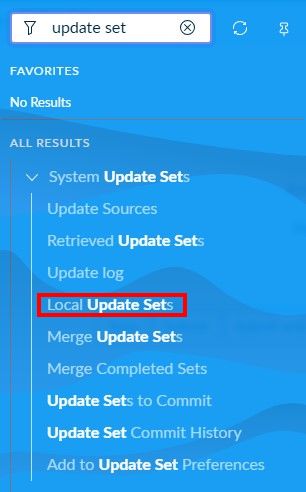

- Fill in the Name field as needed, keep the State as "In progress," fill in other fields or leave them blank, then click Submit and Make Current. The "Globe" icon will display a red circle around it.

- Open the Service Catalog you created via All > Service Catalog > Catalog Definition > Maintain Items.

- Find and click the link named Add to Update Set.

- Return to Local Update Sets, change the State to "Complete," and click Submit. The "Globe" icon will return to normal without the red circle.
- Locate and click Export to XML on the Local Update Sets page. You will be prompted to save the XML file to your local computer.

- Move to the QA or Production instance and navigate to All > System Update Sets > Retrieved Update Sets.

- Find and click Import Update Set from XML, then select the XML file saved in step 7.

- Verify that all components appear in the Customer Updates tab.
- Click the Preview Update Set button, and after ensuring there are no errors, click Commit Update Set.
- Your Service Catalog has now been successfully copied to the new instance without needing to rebuild from scratch.
Conclusion
By using Update Sets, you can efficiently migrate a Service Catalog from one ServiceNow instance to another, such as from Development to QA or Production. This process eliminates the need to recreate the catalog from scratch, saving time and ensuring consistency across instances. Follow the steps above to streamline your migration process and ensure a smooth transition.

Tags: Opinion Servicenow
Add comment
- Other Article
- Google NotebookLM Audio Overview: How Your Boring Documents Became an Addictive Automatic Podcast10 Oct 2026
- Open Source AI vs Proprietary: Why Big Companies Are Switching in 202603 Oct 2026
- 5 Free Agentic AI Tools Used by Indonesian TikTok Creators in 202626 Sep 2026
- Publishing a New App on the App Store and Google Play: What Developers Should Know in 202620 Sep 2026
- Indonesia's Annual Peatland Fire Crisis: Current Impact, Economic Cost, and the Role of Information Technology03 Sep 2026
- AI Agents: From Chatbots to Digital Workers30 Aug 2026
- MBG Poisoning in Indonesia: From Crisis to a Digital Path to Zero22 Aug 2026
- AI Voice Cloning: The New Cybersecurity Threat15 Aug 2026
- When AI 'Escapes': Inside 2026's Wave of Rogue Model Incidents07 Aug 2026
- Rethinking Civil Service Workforce Planning in Indonesia: Beyond Headcount Toward Public Service Capacity31 Jul 2026
- Balancing the Plate: Understanding Daily Nutritional Needs and the Rise of Digital Nutrition Estimation Tools25 Jul 2026
- The Final Four: Strengths, Weaknesses, and Machine Predictions for the 2026 FIFA World Cup18 Jul 2026
- Choosing the Right Framework: A Practical Guide to Best-Practice Problem-Solving Models12 Jul 2026
- Can Science Predict the World Cup? A Look at the Models Behind the 2026 Forecasts04 Jul 2026
- Corruption: A Global Plague, Landmark Cases, and the Path to Prevention27 Jun 2026
- Nations Driving Brilliant Business Ideas and Frameworks in 202620 Jun 2026
- Why the USD Stands Stronger than the IDR — and What Indonesia Can Do13 Jun 2026
- Employee vs. Entrepreneur: Who Bears the Heavier Tax Burden in Indonesia?03 Jun 2026
- The Evolution of Control Operating Centers (COC) in Modern Mining Operations24 May 2026
- Song of: Mariana Istriku13 May 2026
- Organisasi Pensiunan di Indonesia: Dari Komunitas Sosial Menuju Kekuatan Ekonomi Berbasis Pengalaman12 May 2026
- Corporate Risk Management: Why Modern Companies Invest Millions to Prevent Invisible Threats07 May 2026
- The Mining Spirit: A Powerful Mindset for Excellence in the Mining Industry25 Apr 2026
- The Double-Edged Sword: Navigating Competition in the Modern Corporate Landscape22 Apr 2026
- AI Chatbot untuk UMKM: Peluang Besar di Era Digital17 Apr 2026
- AI Chatbots in Business: The Global Revolution09 Apr 2026
- The Heartbeat of Your Business: Why the P&L Statement is Non-Negotiable31 Mar 2026
- Why Your New Business Needs a Financial System on Day One26 Mar 2026
- The Link Between Startup Capital, Business Survival, and the Role of Investor Information21 Mar 2026
- Digital Transformation, Digitalization, and Digitization: Why the Difference Matters More Than You Think14 Mar 2026
- From Business Need to Technology Solution07 Mar 2026
- Bridging the Digital Divide: Starlink and the Future of Internet Access in Indonesia27 Feb 2026
- A Long Weekend Getaway to Yogyakarta16 Feb 2026
- Understanding ERP Systems: A Comprehensive Guide for Modern Businesses16 Feb 2026
- Building a Culture of Awareness: Strategic Approaches to HSE and Information Security Campaigns in Modern Organizations10 Feb 2026
- Building an Effective IT Organization in Coal Mining: A Strategic Framework for Growth02 Feb 2026
- The Art and Science of Color Themes in Modern Web Design17 Jan 2026
- IT Outsourcing vs Internal Resources: A Comprehensive Cost and Risk Analysis05 Jan 2026
- The Hidden Dangers of Mishandled Employee Data: When Internal Tables Fall Into the Wrong Hands05 Jan 2026
- Securing SQL Server: A Complete Guide to Database Access Control05 Jan 2026
- Beyond Human Error: Understanding the Complete Security Chain in Information Security01 Jan 2026